How to Run AI Locally on Your Laptop or Phone: A Beginner's Guide
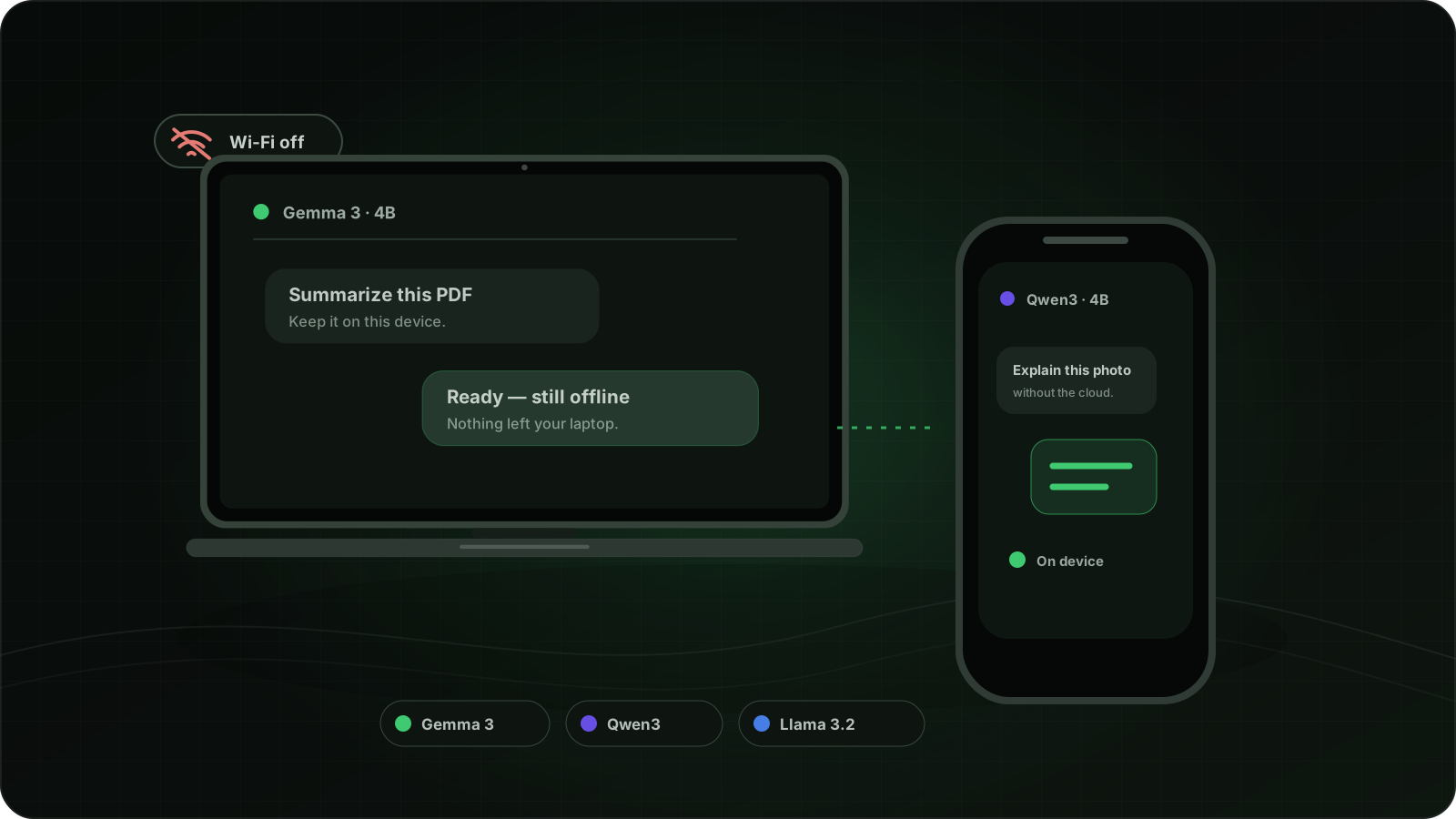
Quick answer: You do not need to build an AI or rent a server. For a first try, install an app that can run models, download one small enough for your device, and start a chat. Use LM Studio on a laptop or desktop and PocketPal AI on a phone. Then turn off Wi-Fi and ask another question: if it still answers, the model is running on your device.
This guide gets you to that first offline answer—but it also helps you decide whether local AI is useful for you, what your hardware can realistically handle, and why you might choose one app or model over another. Technical options such as APIs, Docker, and model tuning can wait.
What you will know by the end
You will be able to:
- decide whether a local model is worth installing for your own work;
- separate the device, the app, and the model instead of treating them as one product;
- choose a sensible model size from your available memory;
- read a name such as
Qwen 4B Instruct Q4_K_M GGUFwithout guessing; - choose between a simple graphical app and a developer-oriented runtime;
- run one model and verify that it still works offline.
You do not need to understand machine learning, train a model, buy a server, or use a command line to complete the beginner path.
What “running AI locally” actually means
ChatGPT and Claude normally process your prompt on company servers. A local model processes it on your own computer or phone.
Think of the difference as streaming a movie versus downloading it:
| Streaming AI | Local AI |
|---|---|
| The model runs in a data center | The model runs on your device |
| Needs an internet connection | Can work offline after download |
| Uses the provider's hardware | Uses your RAM, CPU, and GPU |
| Usually offers the strongest models | Limited by the hardware you own |
Local inference can keep the text you submit on your device, but “local” is not a blanket privacy guarantee. The app may still use the network for model downloads, updates, crash reports, or optional online features. Check its current settings and privacy policy before using sensitive information.
What do you personally gain from local AI?
Local AI is valuable when the way it runs matters as much as the answer it produces.
1. A private workspace for sensitive drafts
You can summarize private notes, rewrite an unpublished document, classify local text, or brainstorm around confidential material without deliberately sending every prompt to a model provider. That can be useful for personal journals, client drafts, internal notes, and early product ideas.
The important qualifier is can: the model inference may be local, while optional search, telemetry, cloud sync, plugins, or remote APIs may still use the network. For sensitive work, disable features you do not need and verify the app's behavior and policy.
2. An assistant that still works without a connection
After the model is downloaded, it can work on a flight, during an outage, or somewhere with poor connectivity. A phone model can provide basic rewriting, translation, notes, and Q&A without mobile data.
3. Predictable usage cost
There is normally no per-message or per-token charge for running an open-weight model on hardware you already own. That matters when repeating a modest task hundreds or thousands of times. The cost has not disappeared: you supply the device, storage, electricity, and time spent maintaining the setup.
4. Control over the model and workflow
You choose the exact model version and when to update it. A downloaded model will not silently change because a provider replaced the backend. Developers can also connect the same local runtime to editors, scripts, and other apps.
5. A practical way to understand AI
Running a small model makes otherwise abstract ideas concrete. You can see how model size affects memory, how quantization changes the download, how speed feels, and where a model fails. That knowledge is useful even if you later return to cloud AI.
Is it worth it for you?
| Your situation | Better starting choice | Why |
|---|---|---|
| You handle private drafts or offline notes | Local AI | Data control and offline access matter |
| You repeat simple extraction, rewriting, or classification | Local AI | No marginal usage fee; consistent model version |
| You want the strongest reasoning with zero setup | Cloud AI | Hosted frontier models remain more capable and convenient |
| You ask a few casual questions each week | Cloud AI | Installing and maintaining a model may not repay the effort |
| You build software or want to experiment | Local plus cloud | Local gives control; cloud covers tasks beyond your hardware |
| You need current news, live prices, or web research | Cloud or a local app with explicit web tools | A downloaded model is not automatically connected to live sources |
For many people the sensible answer is both. Use a small local model for private, repetitive, or offline tasks, and a cloud model when answer quality and current information matter more than locality.
What is local AI good at—and not good at?
| Task | Small local model | Important limitation |
|---|---|---|
| Rewrite an email or paragraph | Good | Review tone and factual changes |
| Summarize text you paste in | Good for short and medium inputs | Long documents use more context and memory |
| Brainstorm names, outlines, and variations | Good | Output can become repetitive |
| Translate common language pairs | Often useful | Quality varies by model and language |
| Extract fields or classify many short records | Often a strong local use case | Test consistency on your real data first |
| Answer questions about current events | Poor without web tools | The downloaded model has no live knowledge |
| Perform difficult reasoning or complex coding | Limited on small devices | Large hosted models generally remain stronger |
| Give medical, legal, or financial conclusions | Not reliable on its own | Verify with authoritative sources and professionals |
The three pieces you need
The names become much less confusing when you put them into three boxes:
- Your device supplies memory and computing power: a Windows PC, Mac, iPhone, or Android phone.
- The app downloads and opens models: LM Studio, PocketPal AI, or another local-AI app.
- The model generates the answer: a member of the Gemma, Qwen, Llama, Mistral, or another model family.
For example, “run Qwen in LM Studio on a MacBook” means:
- MacBook = device
- LM Studio = app
- Qwen = model
The app is the player; the model is the large file it opens.
Which app should you use?
Do not choose by popularity alone. Choose by what you want to do after the first chat.
| Option | Best for | Main advantage | Main drawback |
|---|---|---|---|
| LM Studio | A beginner on Windows, macOS, or Linux | Browse, download, load, and chat in one graphical app | Many advanced controls can look intimidating at first |
| Ollama | Developers and people connecting AI to other tools | Simple model management plus a local API | The usual workflow involves a terminal; it is not the gentlest first screen |
| PocketPal AI | Running a model directly on iPhone or Android | Free, open-source, portable, and works offline after download | Phones fit smaller models and can become warm or drain battery |
| A cloud chatbot | Someone who wants the strongest answers immediately | No model download or hardware setup | Requires a provider and connection; privacy, limits, and cost depend on its terms |
This guide deliberately chooses LM Studio for computers and PocketPal for phones. They let a non-technical user experience the full loop—select a model, download it, run it, and disconnect the network—without making a terminal the first obstacle.
Ollama is worth learning later if you want a local API, coding integrations, automation, or a reusable backend. It is a next step, not a prerequisite.
Before you download anything
Check three things.
1. Memory
Memory is the working space the model uses while it is answering. This is usually called RAM. A dedicated graphics card also has its own VRAM. Apple silicon Macs use a shared pool called unified memory.
Memory matters more than free disk space when deciding whether a model can run. A model file can fit on your drive but still fail to load if there is not enough working memory.
As a conservative first try, start in these ranges:
| Available memory | Beginner starting point | What to expect |
|---|---|---|
| Around 6–8 GB | 1B–3B model, usually a Q4 download | Basic chat, rewriting, short summaries |
| Around 12–16 GB | 3B–8B model, usually Q4 | Better writing and general chat |
| 24 GB or more | Start with 8B; explore larger models later | More choice and room for longer conversations |
These are starting ranges, not guarantees. Your operating system and other apps use memory too, and speed depends on the chip, GPU, software, context length, and model architecture. For phones, the device checker gives a model recommendation from the specific device's hardware.
When reading any compatibility recommendation, distinguish three claims:
- It fits: the model can be loaded into available memory.
- It runs: the device can produce an answer without failing.
- It runs comfortably: answers arrive quickly enough, the device remains stable, and there is room for the conversation and other apps.
AICanRun aims to recommend the third, not merely prove the first.
2. Storage
Models are large downloads. A small model may take roughly 1–3 GB; larger ones can take many gigabytes. Keep extra free space for the app, temporary download files, and more than one model.
3. Your expectations
A small local model is not a free copy of the most capable version of ChatGPT. It can be useful for drafting, rewriting, summarizing, private notes, simple questions, and offline experimentation. It may struggle with hard reasoning, very long documents, obscure facts, and current events.
It also does not automatically have web search, file tools, image generation, or live information. Those are separate product features that can be added later.
How to choose a model without getting lost
There is no universal “best local model.” Make the decision in this order:
- Choose the job. General chat, writing, coding, and multilingual work favor different models.
- Choose the largest size that leaves memory headroom. A model that barely loads may be slower and less stable than a smaller one.
- Choose an Instruct or Chat version. A Base model is not the right first chatbot.
- Start with Q4. Move to another quantization only after the basic setup works.
- Test your own prompt. A leaderboard cannot tell you which model writes in the style you prefer or extracts your fields reliably.
A beginner decision table
| Your priority | What to look for | First test to run |
|---|---|---|
| Everyday chat and writing | A recent general-purpose Instruct model | Rewrite one real paragraph in two tones |
| Multilingual work | A model whose card explicitly lists your languages | Translate a paragraph both directions and compare meaning |
| Coding | A coding-oriented Instruct model that fits comfortably | Ask it to explain and fix a small piece of code you understand |
| Fast answers on modest hardware | A smaller 1B–4B Instruct model | Generate and revise a short response |
| Better reasoning | A larger model or reasoning-oriented variant | Give it a problem with an answer you can independently verify |
| Repetitive data extraction | A consistent instruction-following model | Run the same schema on 20 representative examples |
Model families change quickly, so this guide does not crown one permanent winner. A useful recommendation must include the family, parameter size, instruction variant, quantization, approximate memory requirement, and intended task—not just a famous model name.
Path A: run AI locally on a Windows PC or Mac
For a first experience, use a graphical desktop app. LM Studio combines a model browser, downloader, loader, and chat screen, so you do not need a terminal.
Step 1: check your system and memory
On Windows, open Settings → System → About and look for Installed RAM.
On macOS, open the Apple menu → About This Mac and look for Memory.
If you have a dedicated NVIDIA or AMD GPU, note its model as well. If you do not know whether you have one, that is fine—use the conservative memory ranges above for this first attempt.
Step 2: install LM Studio
Download the version for your operating system from the official LM Studio site, install it, and open it. Avoid third-party download bundles.
LM Studio can do much more than this guide covers. Ignore server, developer, and advanced settings for now.
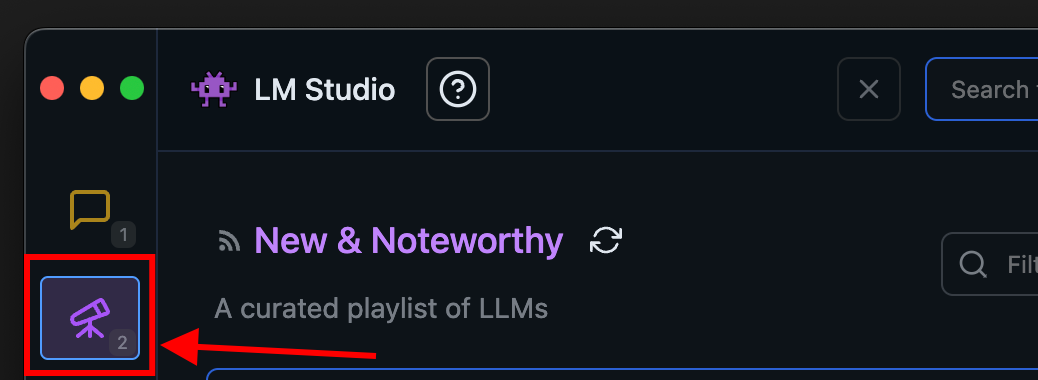
Step 3: choose a small instruct model
Open the model search or discovery screen. Choose an Instruct or Chat model that fits your device; a “Base” model is intended for further training and is not the best first chatbot.
Model results often contain names such as:
Qwen… 4B Instruct Q4_K_M GGUF
Here is all you need to know:
- Qwen is the model family.
- 4B is its approximate parameter count and size class.
- Instruct means it was prepared to follow user requests.
- Q4 is a compressed version suitable for many consumer devices.
- GGUF is the model-file format.
When several uploads have similar names, prefer the app's recommended or verified result and check the stated download size. If you are unsure, stay at the lower end of the memory range rather than choosing the largest model that might fit.
Step 4: download and load it
Start the download and wait for it to finish. Loading the model moves it into working memory. Close memory-heavy games, creative tools, and dozens of browser tabs if loading fails.
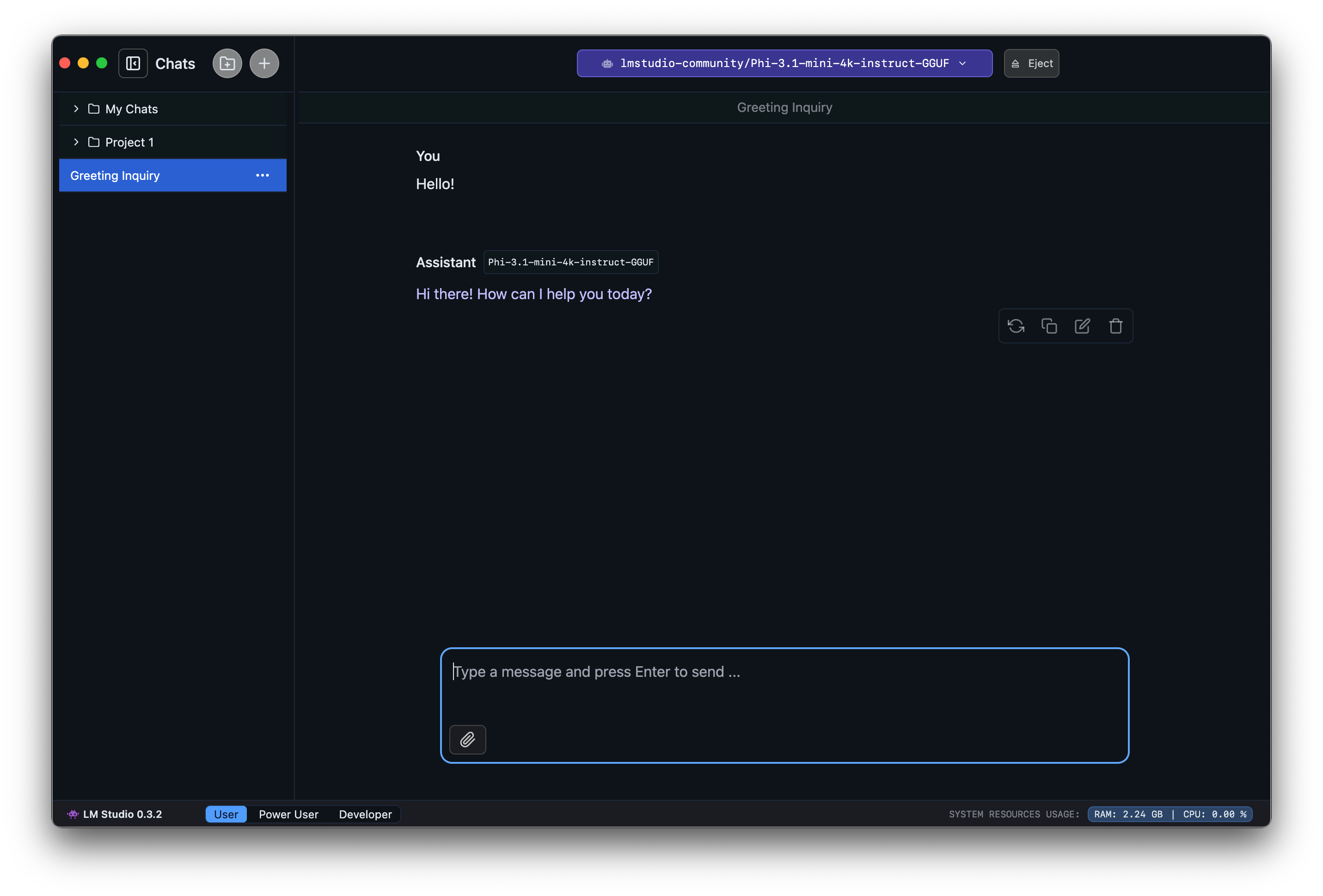
Step 5: send your first message
Use a short, easy-to-check prompt:
Write a two-sentence bedtime story about a robot who is afraid of the dark.
Then follow up:
Rewrite it in a funnier style.
If the second answer follows your request and remembers the story, the basic chat is working.
Step 6: verify that it works offline
Turn off Wi-Fi, then ask:
Summarize the story in one sentence.
If it answers, you have completed your first local-AI setup. Re-enable the network afterward if the app needs it for updates or future model downloads.
Path B: run AI locally on an iPhone or Android phone
PocketPal AI is a free, open-source app for iOS and Android that can download and run GGUF models on the device. Our offline AI app comparison covers alternatives, but using one app keeps the first attempt simple.
Step 1: check storage and identify your phone
Find your phone model and available storage in its Settings app. Phone makers do not always show RAM, so use the phone checker if you are unsure what the device contains.
Download over Wi-Fi. Models can be several gigabytes, and mobile data limits still apply even though the later conversations run locally.
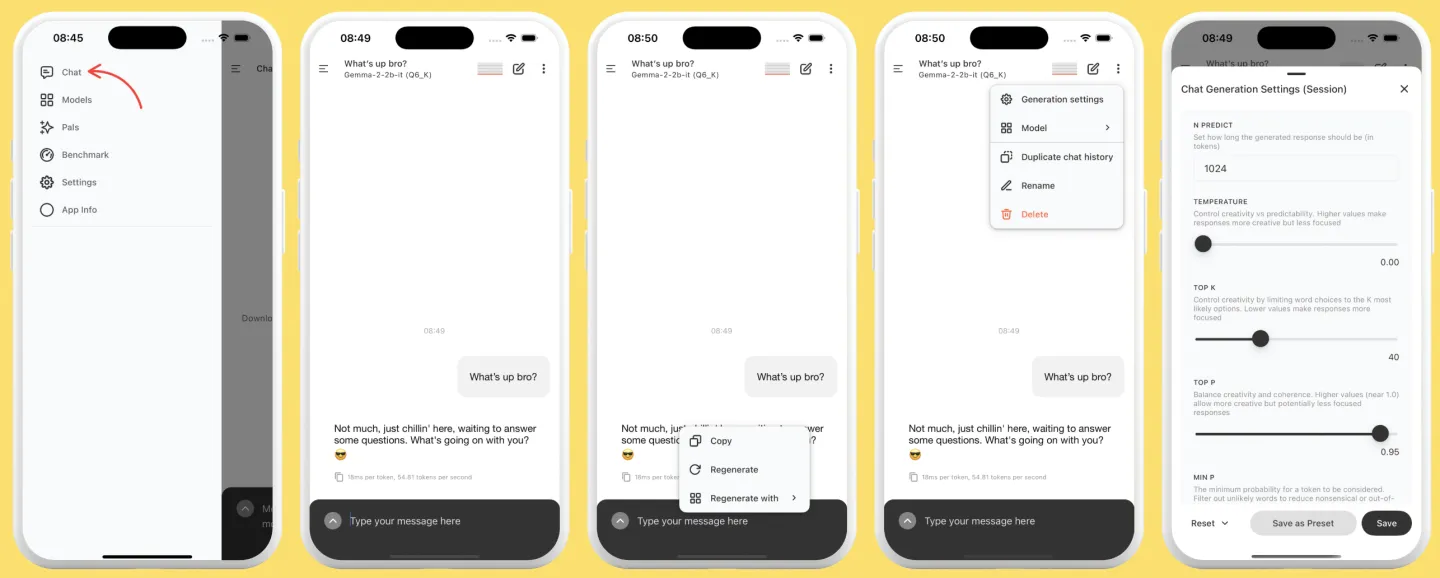
Step 2: install PocketPal AI
Use the official App Store or Google Play listing. Open the app and go to its model browser.
Step 3: start smaller than you think
For a first phone test, choose a small instruct model recommended for your device. Recent high-end phones may run larger models, but starting with roughly 1B–4B reduces the chance of a crash, long load time, or excessive heat.
If the browser shows several quantizations, Q4 is normally the practical beginner option. Do not download multiple versions until the first one works.
Step 4: download, load, and chat
After the model download completes, select it for a chat and use the same robot-story prompt from the desktop instructions.
The phone may become warm during generation. That is expected under sustained load, but stop the session if the device becomes uncomfortably hot. Long sessions also use battery quickly.
Step 5: use airplane mode
Enable airplane mode and ask a follow-up question. An answer confirms that inference is happening on the phone rather than a remote model service.
Airplane mode proves that this particular chat can work offline. It does not by itself audit everything the app may do when networking is restored.
What to do when it does not work
The model will not load
Choose a smaller parameter count or a smaller quantization. Close other apps and restart the local-AI app. On a computer, check that the system is not already close to its memory limit.
The app closes or the phone returns to the home screen
The operating system probably ran out of available memory. Start with a substantially smaller model rather than repeatedly loading the same file.
The answer is painfully slow
A model can technically run without being pleasant to use. Move down one size class, shorten the conversation, and avoid very long prompts. “Fits” and “runs comfortably” are different standards.
The answer is poor or strangely formatted
Confirm that you downloaded an Instruct or Chat model, not a Base model. Start a fresh conversation and use a direct prompt. If it still performs poorly, try another model family of a similar size.
It cannot answer a current question
That is normal for a model without web access. Ask it to distinguish what it knows from what would require a live source. Do not rely on a local model alone for medical, legal, financial, or other high-stakes decisions.
The jargon, translated
| Term | Plain-English meaning |
|---|---|
| Local inference | Your device calculates the answer |
| Model | The downloaded file that generates text |
| Parameters | A rough model-size class, not a quality score |
| RAM / VRAM | Working space used while the model runs |
| Quantization | A compressed model made easier to run |
| Q4 | A common size-quality starting point |
| GGUF | A widely supported local-model file format |
| Context window | How much of the conversation the model can consider at once |
| Tokens per second | A measure of ongoing text-generation speed |
You can explore these terms in the plain-English glossary, but none of them needs to be mastered before your first chat.
What should you try next?
Once the basic setup works, decide what you actually want local AI to do:
- For better answers, try another model that still fits comfortably.
- For private document Q&A, add an app that can index local files.
- For coding tools and automation, learn about Ollama or LM Studio's local server.
- For a phone, compare the best offline AI chatbot apps.
- To understand responsiveness, see what tokens per second feels like.
Do not optimize settings simply because they exist. Keep the smallest setup that solves your task reliably.
FAQ
Do I need a powerful GPU? Not to try a small model. A GPU can make generation much faster, but CPUs, Apple silicon, and recent phone chips can all run appropriately sized models.
Is local AI free? Many apps and open-weight models are free to download, but some apps charge, model licenses vary, and you still provide the hardware, electricity, storage, and maintenance.
Can I run ChatGPT itself offline? No. OpenAI's hosted ChatGPT models are not downloadable. You can run other models locally through a ChatGPT-like interface.
Does local AI remember everything? No. The active context is limited, and chat-history storage depends on the app. A saved conversation is not the same as permanent model memory.
Which model should I download? Choose an Instruct/Chat model that leaves memory headroom on your device. Phone users can use the AICanRun checker for a device-specific starting point; computer users should begin at the lower end of the memory ranges in this guide.
Compatibility and performance statements in this guide are conservative estimates, not measurements from every device. Where AICanRun has verified benchmark data, it is labeled separately from estimates.